
Wondering how to set up RetroPie NES to play your favorite Nintendo games on your television? Lucky for you, we’re going to show you how to easily get your Raspberry Pi set up for using RetroPie and lr-fceumm for playing some fun retro games on the big screen without needing the original Nintendo Entertainment System console.
After you finish this guide, be sure to check out our other guide for how to set up the RetroArch NES Core Mesen.
How To Setup RetroPie for NES?
What You’ll Need
- If you don’t have one yet, you’ll need your own Raspberry Pi device – you’ll obviously need one in order to finish this tutorial and you can grab a Raspberry Pi 4 here off of Amazon for around $100
- Also, go ahead and download RetroPie from the official website here
- If you plan to download the required files and ROMs on your Raspberry Pi, you’ll also need a keyboard and mouse to use with it
- Don’t forget to get your NES ROMs ready to play games (keep in mind that the lr-fceumm emulator accepts the following file extensions: .7z, .fds, .nes, and .zip)
- You’ll also need to have a controller and we recommend you go with the 8Bitdo SN30 Pro
- If at any time you’d like to consult the official RetroPie docs, you can do so on their website here.
1. Setup Your Raspberry Pi
Luckily, the best NES emulator comes as the default emulator for RetroPie so there’s not much extra work you need to do to install it aside from downloading and installing RetroPie itself.
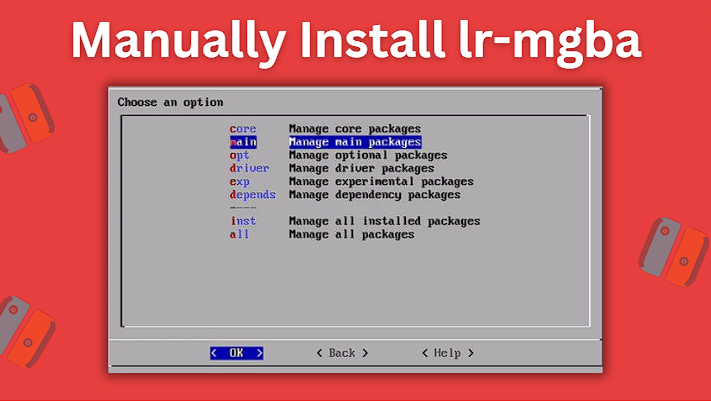
If you’re using an older version of RetroPie that didn’t come with lr-fceumm preinstalled, you can easily get it by doing the following:
- In RetroPie settings, head to RetroPie Setup
- Next, go to Manage packages > Manage main packages
- Go down and then choose lr-fceumm
- After that, choose Install from pre-compiled binary
- Let RetroPie download the lr-fceumm emulator and once it finishes, you can go back through the menu and choose Exit
2. Put Your NES Roms Onto Your RetroPie
We’ll now be moving our NES ROMs onto RetroPie.
Move ROM Files Using Your Raspberry Pi
You’ll need to have the Pixel desktop environment tool installed on your Raspberry Pi to be able to access desktop mode on it. We’ll now be covering how to get this setup.
Head to the RetroPie options menu and then go ahead and go to RetroPie Setup > Configuration / Tools > Raspbian Tools > Install Pixel desktop environment.
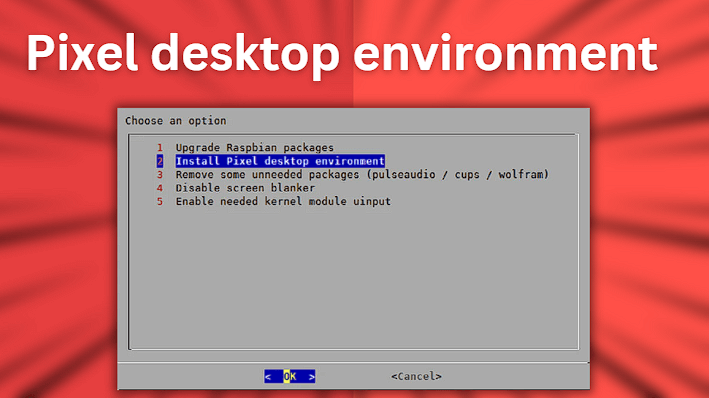
After you have successfully installed the Pixel desktop environment on your Raspberry Pi, go ahead and restart the device. After restarting, you should now be able to access desktop mode by going to Ports > Desktop.
The desktop environment allows you to navigate the files on your Raspberry Pi similarly to how you would on a Windows computer.
Now that we’ve installed the desktop environment, we’ll need to move our NES ROM(s) to the proper folder on our Raspberry Pi:
- /home/pi/RetroPie/roms/nes/
Remote Access Your Raspberry Pi From Your PC
The easiest way to get files from your PC computer to your Raspberry Pi is by remotely accessing the Pi from your PC. To do this, you’ll first want to make sure that your Raspberry Pi is connected to the same network as your PC.
First, make sure your Pi is connected to your WiFi or to your network router directly using an ethernet cable.
Open up the Windows file explorer on your PC and type \\retropie into the address bar at the top. After waiting for a few minutes, your Raspberry Pi should appear. If it doesn’t appear, there are a few additional steps we’ll need to take. If yours does appear, you can go ahead and skip to directly below the Remote Access screenshot shown down below.
On your Raspberry Pi, open the terminal window and type in:
- sudo apt-get install xrdp
This command will now begin to install the remote desktop server.
Now you’ll need to figure out the IP address of your Raspberry Pi. To do this type, you’ll want to use the following command:
Make a note of your Raspberry Pi’s IP address because we will need to use this soon in order to connect to it remotely. You’ll also need your Pi’s username and password.
Now on your PC, go ahead and open the remote desktop app by typing remote desktop into the Windows search bar in the bottom left. Click remote desktop connection to use the remote desktop app.
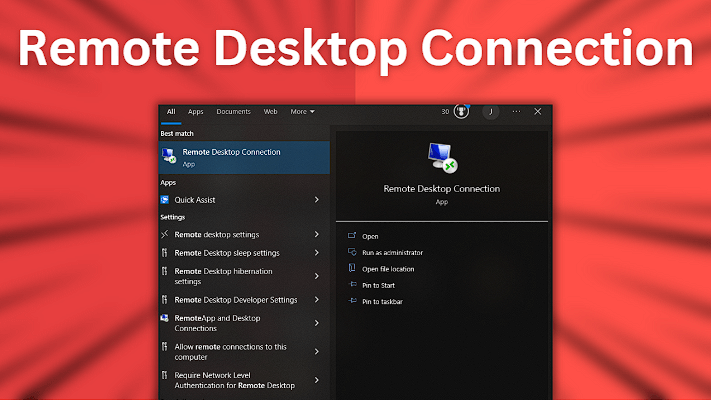
Search for and select Remote Desktop Connection on your PC
In the Remote Desktop Connection window that pops up, you’ll now want to enter the IP address of your Raspberry Pi that you got earlier. After clicking connect, login using your Raspberry Pi’s username and password.
If everything went correctly, you should now be able to remotely access your Raspberry Pi from your PC. To double-check that you are able to access your Raspberry Pi remotely, open up Windows File Explorer and type \\retropie into the address bar. You should see your Retropie files appear.
Whether your Raspberry Pi appeared automatically or you needed to do the additional steps, now we’re moving on to the final parts.
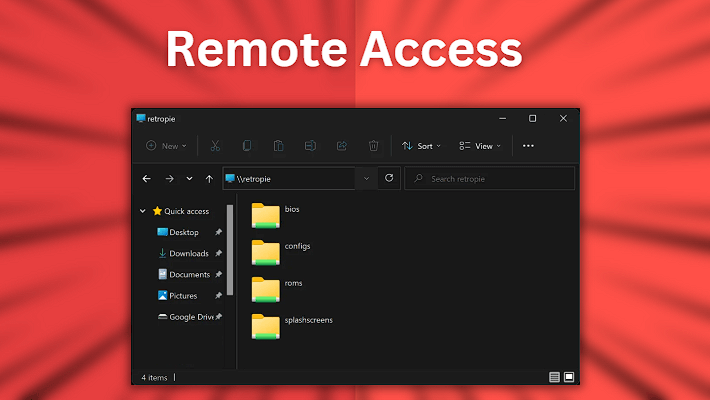
Remember earlier, we mentioned that we would need to copy our NES ROMs from our PC to this directory on our Raspberry Pi:
Navigate to roms > nes and copy your NES ROMs files from your PC to this folder in your Raspberry Pi. After you’ve copied your ROMs over, restart your Raspberry Pi and the games should now appear as expected.
3. Play Your NES Games
Now that your Raspberry Pi has been restarted and is all set up and ready to go, you can boot up EmulationStation and once you highlight Game Boy Advance, it should show you at the bottom how many games are available to be played for it. You’re now all ready to play!
This article may contain affiliate links. If you use these links to purchase an item, we may earn a commission. Thank you for your support.