
If you’re looking for how to setup the RetroArch DS core DeSmuME, you’ve landed on the right guide because we’ll be explaining how you can easily get set up and be playing your favorite DS games in minutes. The Nintendo DS has some fantastic titles that run exceptionally well on RetroArch when using the DeSmuME DS core.
DeSmuME is the best DS emulator you can use and the fact that RetroArch has it available as a core is awesome.
RetroArch can emulate games from all sorts of different systems including the Nintendo DS. We’ll break down how to download and setup the DeSmuME core for RetroArch so that you can get straight to playing your DS games.
We’ll be covering how to get setup with both the standalone version of RetroArch and also the Steam RetroArch version as well.
That’s enough of an introduction, let’s begin!
How To Setup The RetroArch DS Core DeSmuME Standalone version?
Download RetroArch
- You’ll first need to go ahead and download and install the RetroArch emulator which you can grab from the official website here. If you already have RetroArch installed, make sure you are on the latest stable version which you can get here.
Get your DS ROM ready
- Ensure that you first have at least one DS ROM file that you’ll be using to test after getting setup. This ROM is the DS game that you’ll be playing and using to test to make sure everything is setup properly.
Remember that downloading DS ROM files for games you don’t own and haven’t dumped yourself is illegal. For those interested though, we do have a list of the best sites for ROMs to see which DS games you’d like to buy.
Using a controller?
1. How To Download The DeSmuME RetroArch Core?
Finding the DeSmuME Core
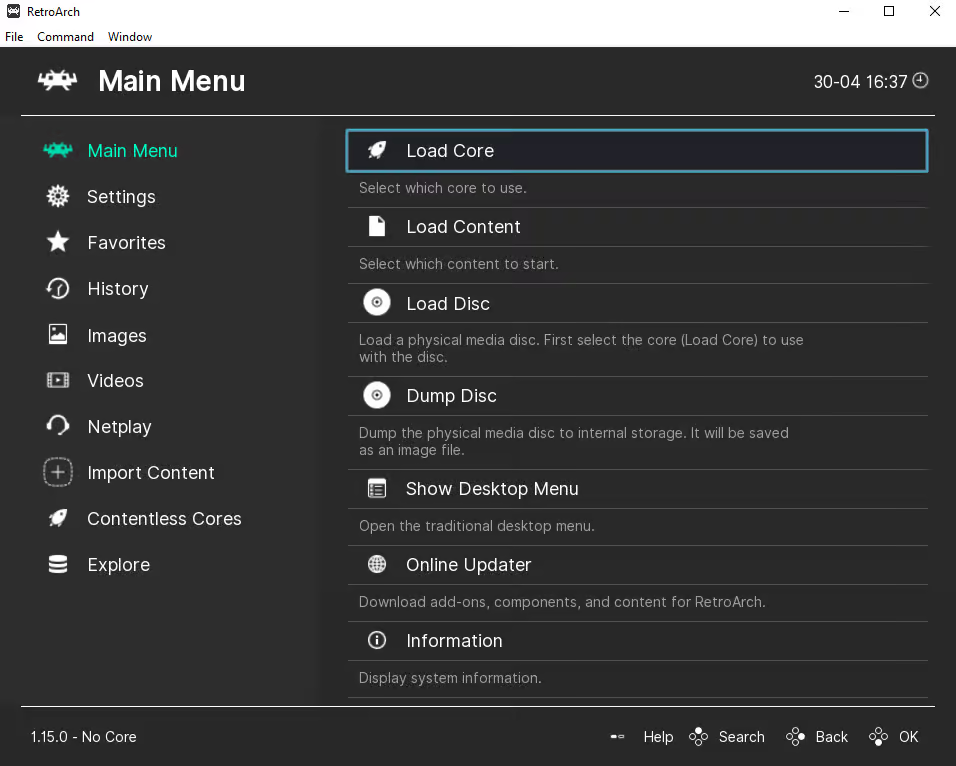
- Once RetroArch opens, select Load Core
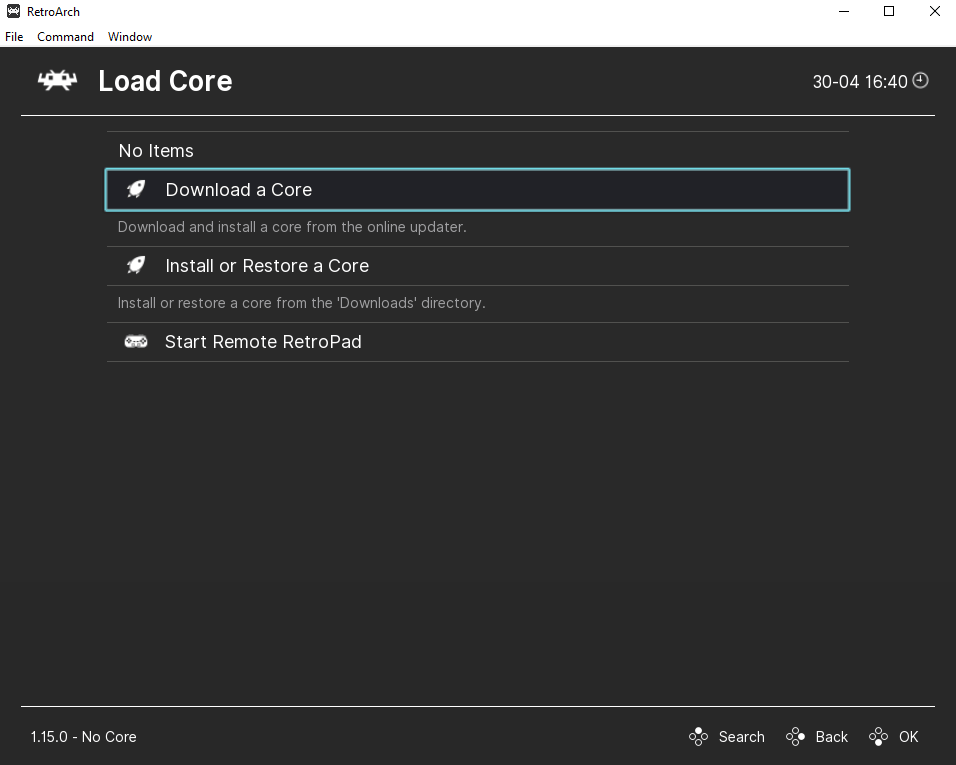
- Next, choose Download a Core
Downloading the DeSmuME Core
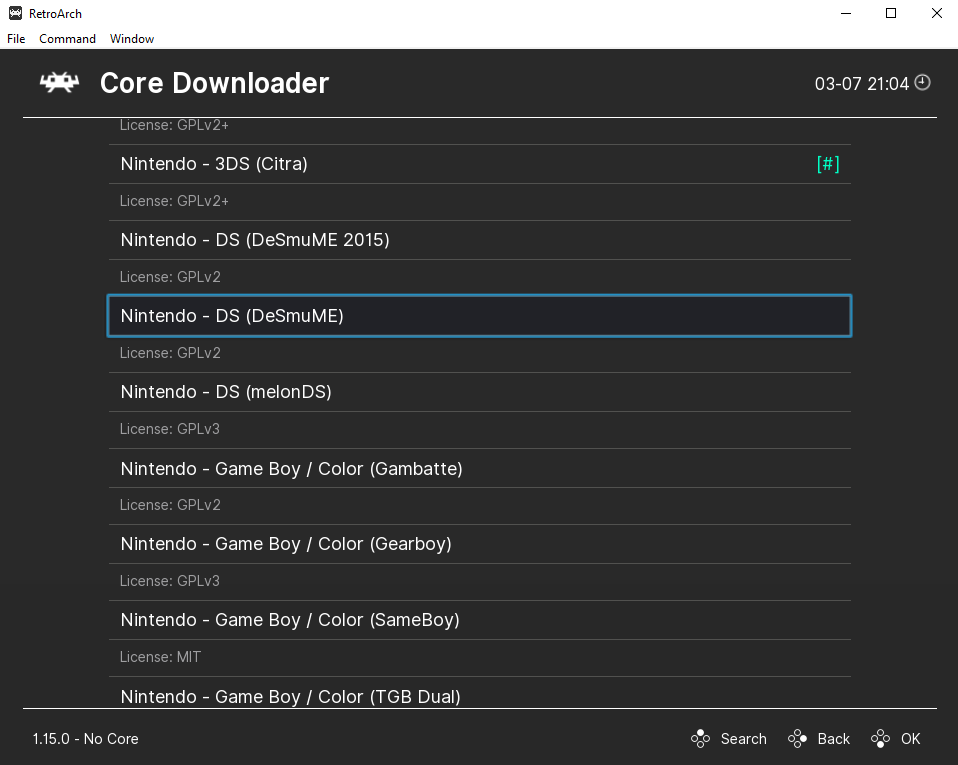
- After, scroll all the way down until you see the Nintendo – DS (DeSmuME) core and click on it to download it
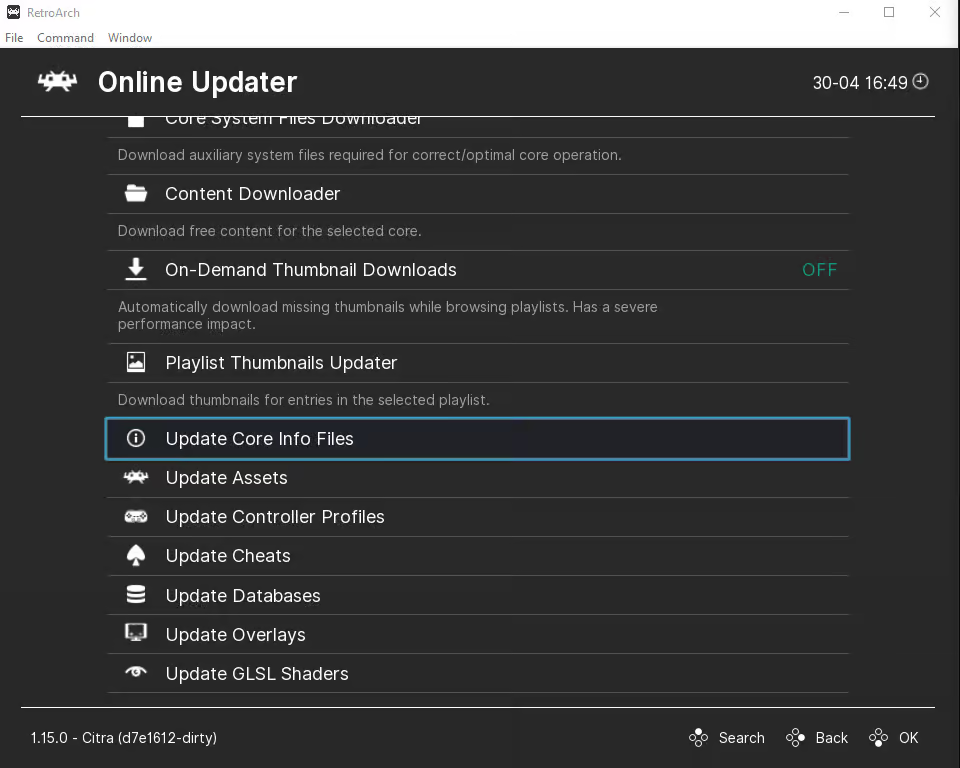
- If RetroArch was already installed on your device, don’t forget to go back to the main menu screen and scroll down to select Online Updater and then select Update Core Info Files and also select Update Databases to ensure that all of your cores info files and databases are all up to date
- After it’s done downloading, you may now press back and then select Load Core
2. How To Load Your DS ROM File In RetroArch
Go to Load Content
With the DS core now installed in RetroArch, we’re ready to load up our NES ROM file.
- Head back to the main menu and select Load Content
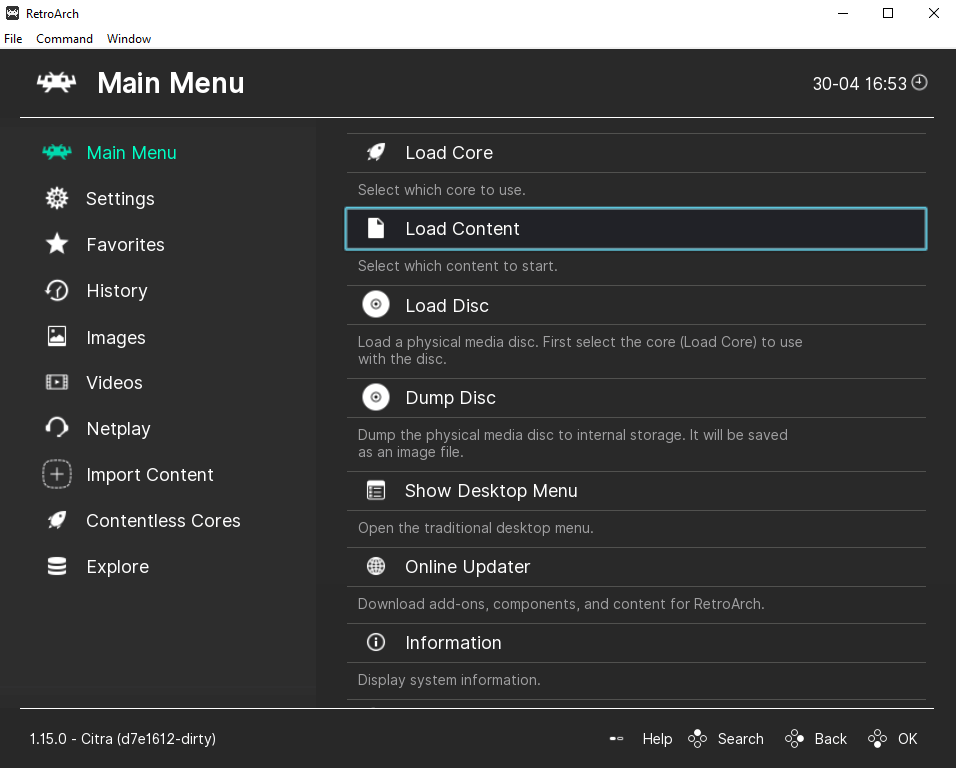
- Locate where you saved your DS ROM on your computer and select it
- Your DS game should now launch and voila, just like that you’re all set and ready to play
How To Install RetroArch DeSmuME Core on Steam?
To install the RetroArch DeSmuME core on Steam you will also need to:
- First, right click RetroArch on Steam > Manage > Browse local files.
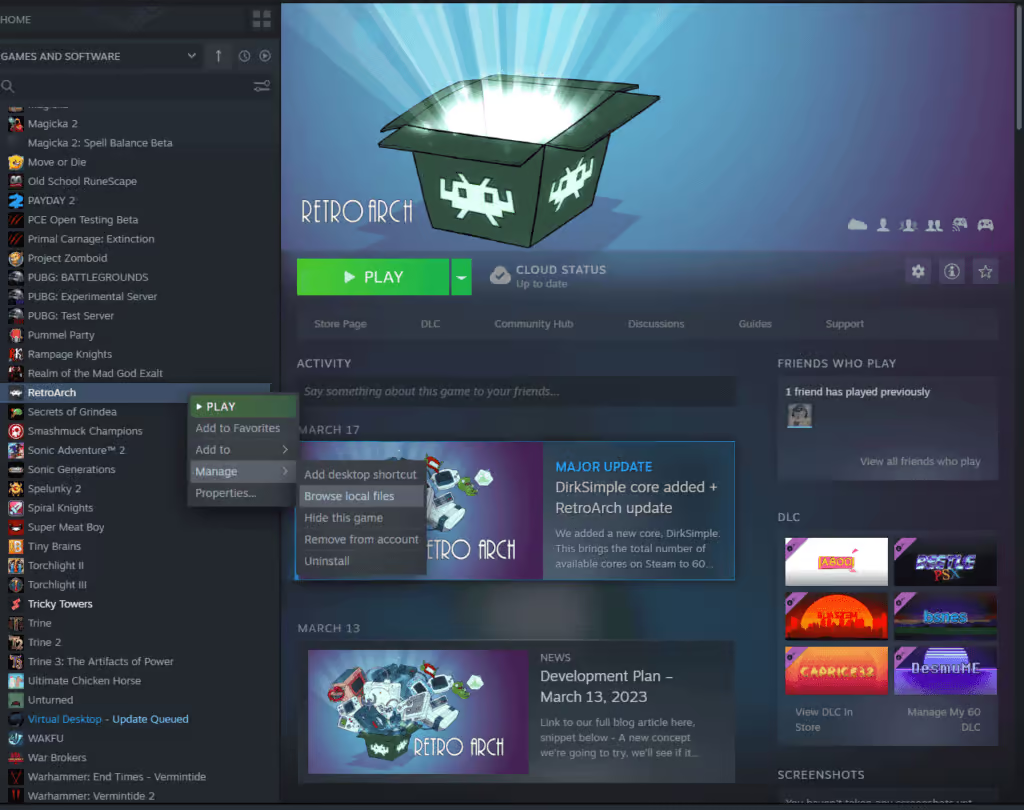
- Once the Steam folder opens for the RetroArch files, open up the cores folder
- Next, install the DeSmuME RetroArch core from the RetroArch buildbot here: https://buildbot.libretro.com/nightly/windows/x86_64/latest/desmume_libretro.dll.zip
- After installing the DeSmuME core, extract the files from the ZIP folder you downloaded
- Open up the extracted folder and copy the desmume_libretro.dll file into your Steam’s core folder
- Next, install the DeSmuME RetroArch info files from the RetroArch buildbot here:
https://buildbot.libretro.com/assets/frontend/info.zip - After installing the info files, extract them from the ZIP folder you downloaded and copy all of them into the “info” folder for your Steam version of RetroArch
- Next open the Steam version of RetroArch and click Load Core to check that the Nintendo – DS (DeSmuME) core shows up – if it does, you’re all set
- You’re now ready to play some DS games on RetroArch right from the comfort of Steam
Additional DeSmuME Core Settings, Options, and Features
Supported Core File Extensions
The DeSmuME core supports the following file extensions:
Now that you’re all setup, you’re now ready to play some Nintendo DS games!
This article may contain affiliate links. If you use these links to purchase an item, we may earn a commission. Thank you for your support!


