
Wondering how to use an Xbox One controller with Snes9x? You’ve found the right article because we’ll be showing you just how simple it is to connect your Xbox controller and play SNES games with it. There’s no need to go out and buy an additional SNES controller!
Snes9x made the top spot on our list for the best SNES emulator and for good reason. It’s super popular, but for some reason there aren’t a whole lot of articles online explaining Xbox controller setup. That being said, let’s get started so you can get to playing some Super Nintendo games!
1. Connect your Xbox Controller To Your PC
It should go without saying, before you can begin this guide you’ll need to make sure that you have Snes9x installed on your computer and that you have your Xbox One controller ready to connect to your computer. If you don’t have Snes9x installed yet, head to the official website to download it.
Connect Your Controller Using Micro USB
- Connect your USB cable to your computer (make sure you PC is turned on)
- Connect the micro USB port to your Xbox one controller
- With your controller plugged into your PC, press the Xbox logo on your controller and once the logo lights up, your PC should automatically recognize that your controller is connected
- If your PC doesn’t automatically recognize your controller, you may need to try a different USB port on your computer or a different micro USB cable
Connect Your Controller Using Bluetooth
The original Xbox One controller typically didn’t support Bluetooth, but some later versions of it did. For example, the Xbox One S controller had Bluetooth enabled and I personally use this controller for all my PC games.
To connect your Xbox One controller using Bluetooth, you can do the following:
- Power on the Xbox One controller by holding down the Xbox logo button
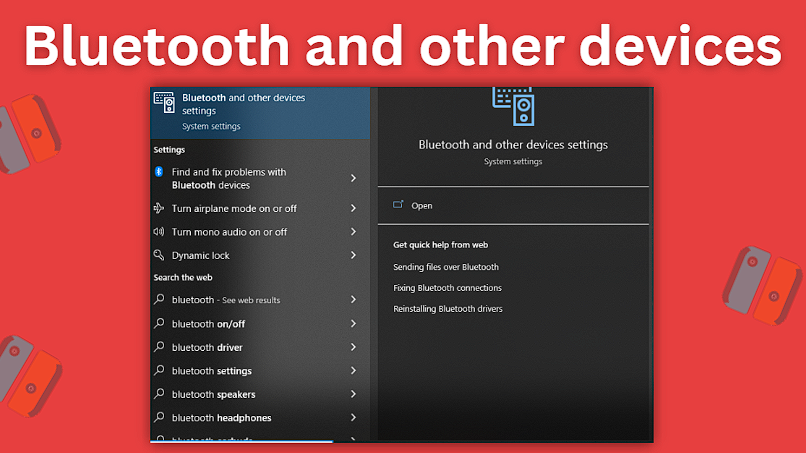
- Make sure that Bluetooth is enabled and turned on for your PC either by visiting the Action Center or by searching for Bluetooth and other devices in your PC’s main search in the bottom left
- Once Bluetooth is turned on, open up Bluetooth and other devices on your computer if it isn’t already yet
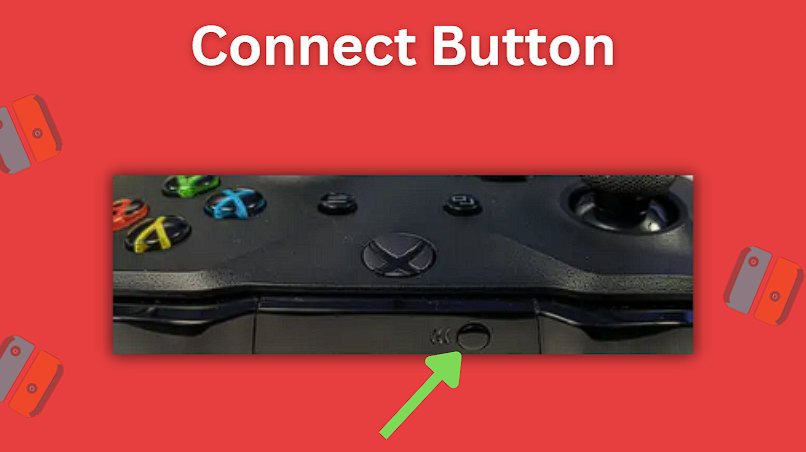
- Press and hold down the Connect button on your Xbox One controller for a few seconds until you notice the Xbox button start to blink (this means that it is searching)
- Your PC may automatically discover your Xbox controller or you may need to go to + Add Bluetooth or other device and then select Bluetooth from the top and then select your controller once it’s found
2. Snes9x Xbox One Controller Input Settings
You’ll now need to configure your Xbox controller and map the buttons so that Snes9x knows which controller buttons perform which actions.
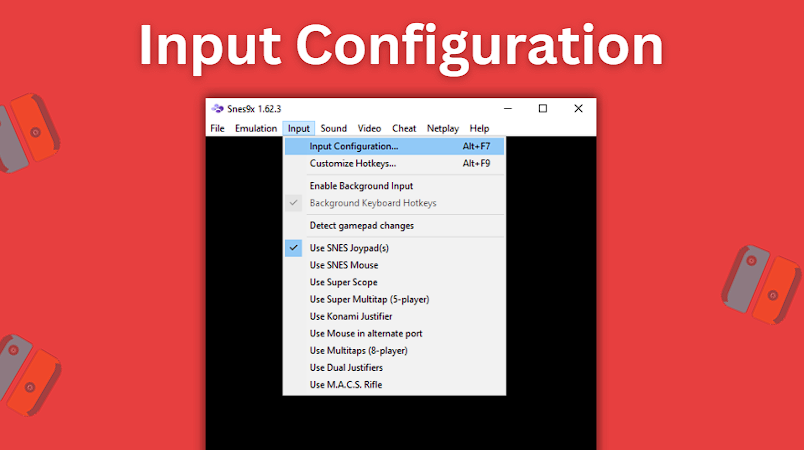
- Open up the Snes9x emulator and from the top menu select Input > Input Configuration
- Now click each button shown on the popup that you would like to remap and then press the button on your Xbox controller that you would like to map to the SNES controller button – it’s recommended to go through each button shown here and map all of them one by one
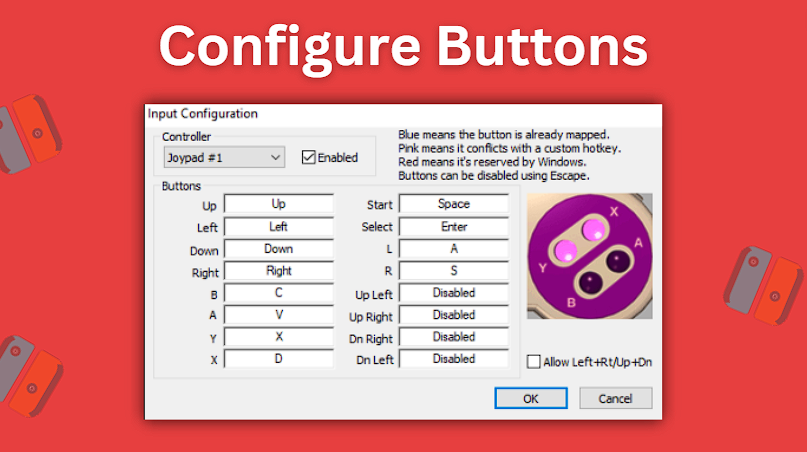
- As a side note, you will see towards the end options like Up Left and Dn Right which are diagonal D-PAD directions meaning you can map your D-Pad on the Xbox controller to add diagonal directions
- You’ll know that a button is already mapped if it is blue
- When finished, be sure to save your changes by clicking the OK button
Conclusion
You’re now all setup and ready to play some SNES games using your Xbox One controller. See how simple that was to get working? If you run into any issues, be sure to work through the steps again carefully to ensure you aren’t skipping any steps.
Frequently Asked Questions
Can You Use An Xbox Controller on Snes9x?
Yes, you absolutely can use an Xbox controller on Snes9x. After connecting the controller to your PC, you’ll just need to go in and map the Xbox controller’s buttons to the SNES controller’s buttons so that the emulator knows which buttons you press should simulate the SNES controller’s. It’s very simple to do and doesn’t take long at all to set up.
You might also be interested in this Snes9x Netplay tutorial.


