
Wondering how to setup Dolphin emulator cheats? You’re in luck because this guide will show you how to use cheats with the Dolphin GameCube and Wii emulator.
Dolphin is known as the best GameCube emulator available for good reason. It lets you play your favorite GameCube and Wii games on your PC, Android, and Mac devices all with upscaled graphics and increased performance.
Now let’s get started settings up Dolphin emulator cheats.
How To Activate Cheats On Dolphin Emulator?
Enable Cheats
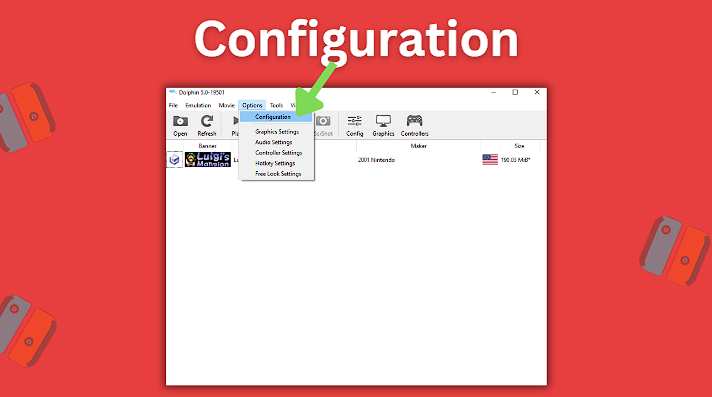
To activate cheats on Dolphin, first choose Options from the top menu and then select Configuration.
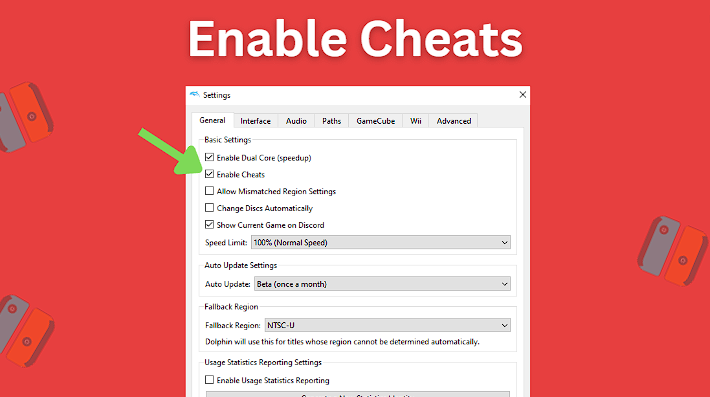
This will open up the emulator’s Settings menu. Make sure that the checkbox for Enable Cheats is checked. You can click the Close button after making sure it’s checked.
Apply Cheats
Now we want to apply a cheat code that we’d like to use to one of our game ROMs. You can get a full list of available cheats to use from this site here. I’ll be using the 999 Cash cheat for Luigi’s Mansion, but you can perform the following steps for any cheat and game that you wish.
Right click on the game in the main Dolphin window that you’d like to add a cheat to and then choose Properties from the popup menu.
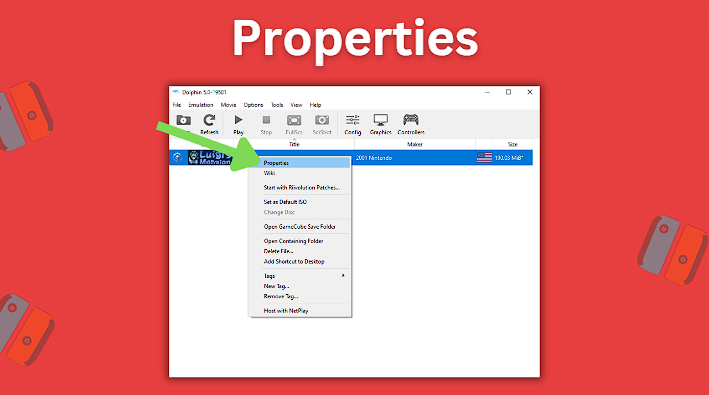
Note: if your games are not yet appearing in the Dolphin emulator’s main screen as shown in the screenshot above, first go and follow the steps on our how to setup Dolphin emulator guide (starting at the How To Setup Dolphin Emulator Games section) and then return to complete this tutorial once they are properly showing.
Next, select the AR Codes tab at the top.
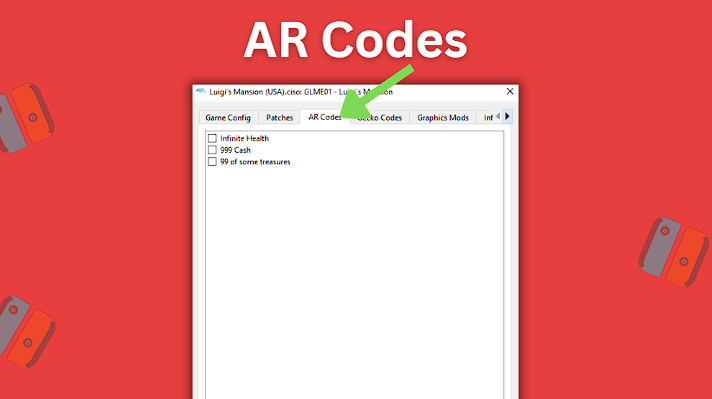
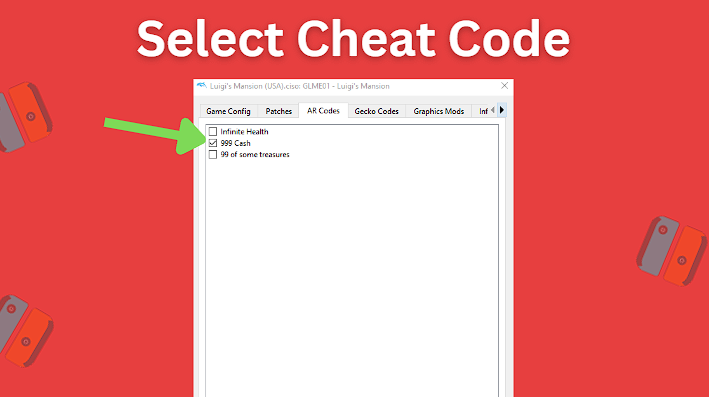
You can see from the screenshot above that multiple cheat codes appear automatically for me for Luigi’s Mansion. Infinite Health, 999 Cash, and 99 of some treasures. These cheats are automatically available by default from Dolphin, however your game may not have any listed. To enable any of the cheats that may be available, you simply need to click the checkbox next to it to select it.
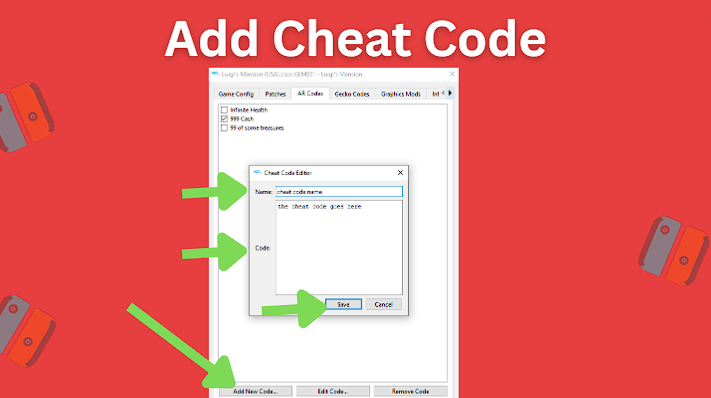
To add a new cheat code that might not already be available, click the Add New Code… button at the bottom and then give your new cheat code a name in the Name field and enter the code in the Code field. Be sure to click the Save button to save your new cheat code.
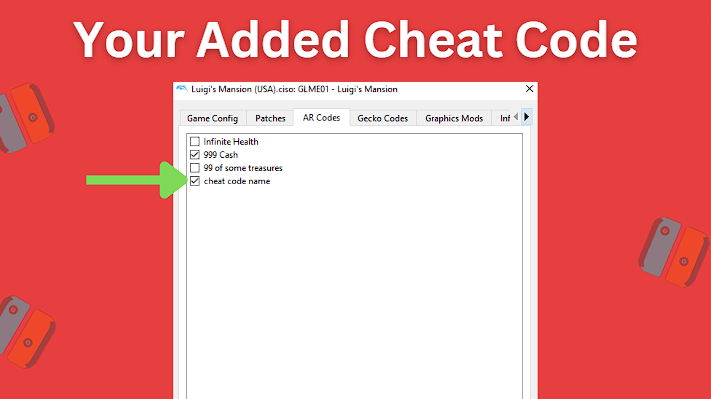
You should now see the cheat code that you created appear in the AR Codes tab section pre-checked. You can click the Close button now to close the dialog and go back to the main emulator screen.
Start Game
Now let’s go ahead and start our game ROM to verify that the cheat code we selected or created is working correctly. If you find that the cheat code you created isn’t working, be sure to go back and check to make sure that it has a checkmark next to it showing that it has been selected for the game. If it’s not checked, check it and then restart your game.
You can add and remove cheat codes for game ROMs at any time by simply unchecking that cheat code in the AR Codes tab of the game’s Properties settings.