Your Steam Deck can now become an entertainment hub for playing your beloved Nintendo Switch games with the help of the Yuzu emulator! In this guide, we’ll provide you steps on how to set up and optimize performance settings in order to get the best gaming experience from your favorite Switch titles. Get ready to enjoy all your favorite Nintendo Switch games on your Steam Deck today!
Short Summary
- Learn how to set up the Yuzu emulator and configure controller inputs for Nintendo Switch games on your Steam Deck.
- Enjoy best-selling titles like Mario Kart 8 Deluxe, Animal Crossing: New Horizons, Super Smash Bros Ultimate, The Legend of Zelda: Breath of the Wild and fan favorite indie games with Yuzu.
- Enhance your experience by using save states & the rewind feature, custom shaders/mods or exploring multiplayer options available in Yuzu.
How To Set Up Yuzu on The Steam Deck
Choosing the Right Emulation Software
When it comes to Nintendo Switch emulation software, Yuzu is the preferred choice. Yuzu was even on our list of the best Nintendo Switch emulators. Lucky for us, it’s also possible to run Yuzu on the Steam Deck!
Installing Yuzu and Necessary Files
You can download the Yuzu emulator either from the Discover Store or use an automated installer such as EmuDeck or RetroDeck. For a convenient installation process, we recommend using EmuDeck.
After that, you will need to add some specific files for whatever games you want in order to run them correctly on your Steam Deck.
These should be placed into:
- nand/system/Contents/registered/
Note: If there are any missing documents involved with this setup, go to File located at the top left corner of the Open Yuzu Folder and then put all required items within their appropriate folders before restarting it. Don’t forget though that piracy is strictly prohibited by Yuzu developers so make sure you own legitimate copies of every game first before using their ROMs. Check out our article on is emulation legal for more info.
Configuring Controller Inputs
For a better experience with the Yuzu emulator, you’ll want to first configure the controller inputs. To do this, go into Emulation > Configure and select Controls in the left pane.
Choose Player 1 for an overview of how your gamepad buttons match up with their keyboard alternatives, adjust these settings as needed until all are configured correctly. Don’t forget to test out each input to be sure everything is functioning properly!
Which Nintendo Switch Games Work with Yuzu?
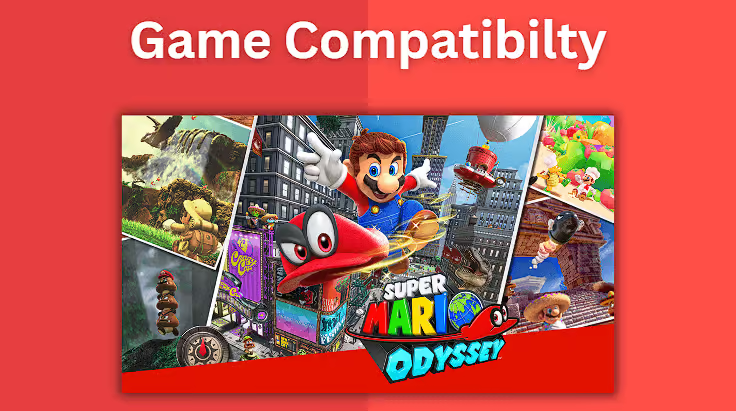
Many popular titles are playable through this emulator, but the quality can vary depending on the game you’re looking to play! The Yuzu website has a list of tested Switch games and their compatibility which you can see here.
Thousands of Nintendo Switch games have been tested with the Yuzu emulator and as of right now, 644 are in a Perfect state, 813 are in Great, 415 are Okay, 327 are Bad, 311 are Intro/Menu, 189 are Won’t Boot, and 22 are Not Tested.
A breakdown of each compatibility score can be seen below:
- Perfect: Game functions flawless with no audio or graphical glitches, all tested functionality works as intended without any workarounds needed.
- Great: Game functions with minor graphical or audio glitches and is playable from start to finish. May require some workarounds.
- Okay: Game functions with major graphical or audio glitches, but game is playable from start to finish with workarounds.
- Bad: Game functions, but with major graphical or audio glitches. Unable to progress in specific areas due to glitches even with workarounds.
- Intro/Menu: Game is completely unplayable due to major graphical or audio glitches. Unable to progress past the Start Screen.
- Won’t Boot: The game crashes when attempting to startup.
- Not Tested: The game has not yet been tested.
Clearly many titles should work, but just for confirmation, the following games do work with the Steam Deck:
Early Access Updates
Yuzu’s team is always striving to improve the emulator with Early Access updates that can be enjoyed on Steam Deck before they are released officially. You can keep an eye out for any news about each early access build by staying up-to-date with Yuzu’s official blog. With this, you get access to exclusive features and fresh improvements made to give you a better gaming experience than ever before!
Optimizing Performance on Yuzu
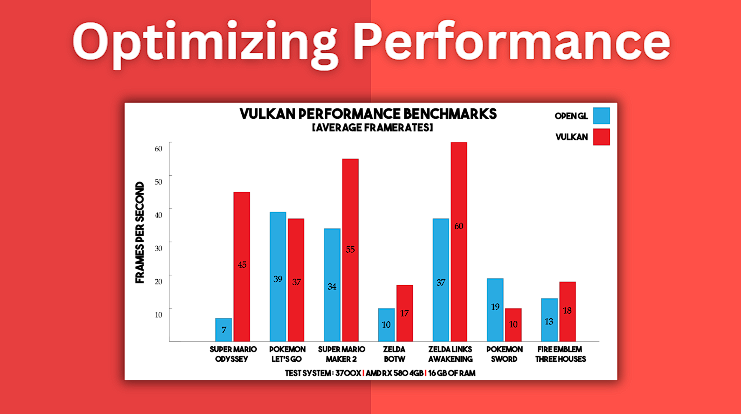
Yuzu has some options to optimize performance. In order to make the most of it, there are several adjustments which need to be made – such as changing graphics settings like resolution and anti-aliasing, optimizing CPU/GPU output for smoother gameplay, etc., that can all help boost Yuzu’s efficiency. Troubleshooting common issues is also important to make sure that your setup isn’t causing quality problems.
Graphics Settings
When it comes to Yuzu gaming, the graphics settings chosen can have a major influence on your experience. For optimal performance, we suggest adjusting the API settings either to OpenGL or Vulkan as per what works best with each game. You can also try to boost results by enabling multi-core CPU emulation which could be advantageous too. Ultimately users need to find that ideal balance of various options tailored for their specific hardware and game setup.
CPU and GPU Optimization
Yuzu allows gamers to optimize their CPU and GPU performance. This can be done by enabling multicore emulation for the CPU, as well as adjusting graphics settings such as API’s OpenGL or Vulkan depending on what yields better results with each game.
Troubleshooting Common Issues
Have issues with Yuzu? Don’t worry. You can fix common problems by looking up the game’s compatibility list, adjusting your graphics settings, boosting CPU and GPU speeds for optimal performance and checking if any updates are available.
Take some time to work through these steps – once you do that, playing on your Steam Deck should be a smooth experience! If these don’t solve your issue, Yuzu also has an entire page dedicated to troubleshooting on their FAQ here.
Enhancing Your Yuzu Experience
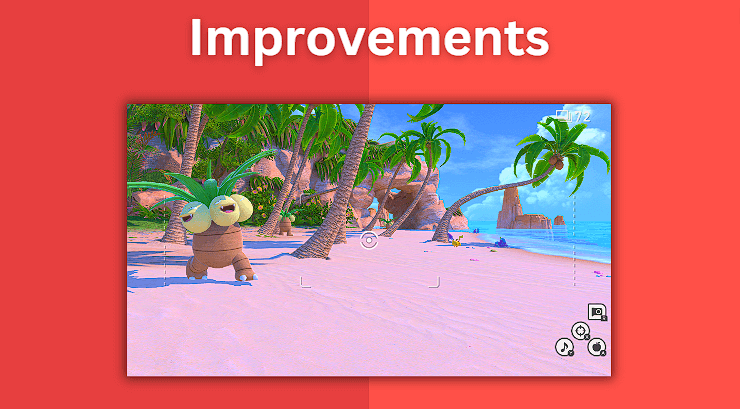
Once you’ve optimized Yuzu’s performance, you can enhance your gaming experience by setting up some custom shaders and mods, exploring multiplayer features, and if it suits your fancy, rewinding gameplay. Even though save states are not currently supported on the platform yet, there are still plenty of ways to make it more enjoyable.
Save States and Rewinding
Yuzu, the emulator, provides an additional game support feature with their rewind option in its settings. This allows gamers to go back and undo mistakes they may have made along their journey. For permanent changes such as saving progress of a game, Yuzu users must use Save Data instead since save states are not yet supported.
Custom Shaders and Mods
To customize your gaming experience on Yuzu with shaders and mods, use the Transferrable Pipeline Cache. Copy-paste shader files into their designated folder to implement them properly. To access enhanced graphics or other content, try out the Yuzu Mod Downloader for downloading and installing modifications quickly and easily. Games can be opened in Yuzu simply by right-clicking on it.
Multiplayer Options
Yuzu allows gamers to challenge their friends or compete with other players through its local and online multiplayer functions. To get Local Wireless Multiplayer (LDN) started, both Yuzus must be connected on the same network. Then they can engage in game play together. It is important to note that LDN cannot establish connections between a physical Switch console nor Nintendo servers and the Yuzu emulator.
Summary
By taking advantage of the Yuzu emulator, Steam Deck owners can now experience Nintendo Switch games in a whole new way. Setting it up, optimizing performance through features like custom shaders and multiplayer options gives gamers an enhanced gaming experience to enjoy their favorite titles on the platform they choose.
Frequently Asked Questions
Can Steam Deck play Yuzu?
Steam Deck users are now able to access and play Nintendo Switch titles thanks to Yuzu. This means that those who have a Steam Deck can enjoy all the great games offered from Nintendo’s handheld hydrid console – no matter whether it be a classic game, something more recent, or even an indie title!
Which emulators work on Steam Deck?
Steam Deck works with a selection of classic gaming consoles from the 90s, such as the NES and Genesis. It also supports certain handheld devices of that time period. Some early 3D systems like N64 and Gamecube can be used with Steam Deck. More modern ones like Switch also work, hence this tutorial!
How do you play Nintendo Switch on Steam Deck?
To be able to play Nintendo Switch titles on a Steam Deck, one must install the emulator software Yuzu. After that has been done and Desktop Mode is running, grab all required keys: Title Keys, Prod Keys, and Firmware, then add them to their keys folder in either Yuzu or Ryujinx accordingly. The guide above explains this entire process.
It might seem complex at first sight, but by following along with our guide it can easily become an achievable task! You might also want to check out our Yuzu emulator guide for PC and Linux.