
Although the PS4 has become very reliable by the end of its lifecycle, some nagging issues can still crop up from time to time. Even though many have moved on to the PS5, there are still plenty of reasons to keep your PS4, or at least the controller, up and running.
Issues aside, we can’t overstate the convenience of having wireless PlayStation 4 controllers — but you must sync them to your system to use them. For PS4 or PS4 Pro owners, syncing your PS4 DualShock shouldn’t be an issue, but we’re here to clear up any confusion. We’ll run down all the common PS4 controller issues, so you can direct your focus on choosing what games to play.
Should you want to ditch your console, we’ve also put together a guide for connecting your PS4 controller to your PC.
See more
How to sync a PS4 controller
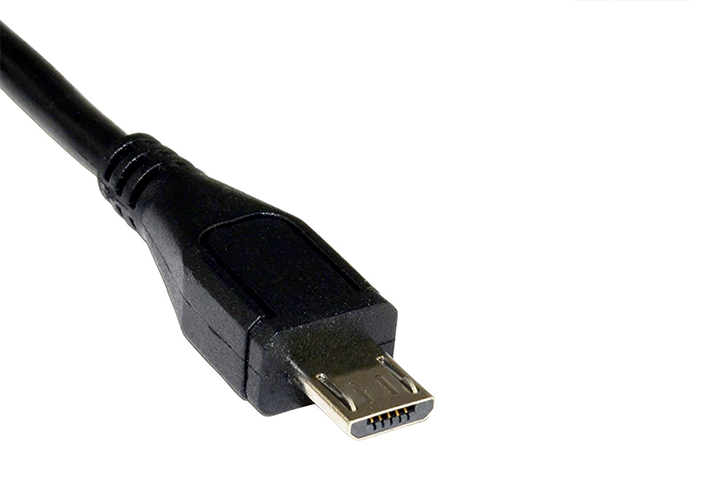
Syncing a PlayStation 4 DualShock controller to a PS4 is extremely easy, but it does require one piece of hardware: A USB to Micro-B cable. There’s no wireless workaround for pairing controllers via Bluetooth, so to sync new controllers with your PS4, you’ll need a cable (though you can connect a PS4 or Xbox controller to your smartphone or tablet). Your DualShock 4 controller comes with one cable, but any USB 2.0 to Micro-B cable will work.
Step 1: Plug the USB cable into the controller, then into the USB port in the PlayStation 4.
Step 2: When you turn on your PS4, your controller should automatically connect with your PlayStation, thanks to the USB cable. You’ll need to push the PlayStation button in the center of the controller to activate the controller. When you do that, the PS4 should take you to the login screen to choose a player account to go with that controller.
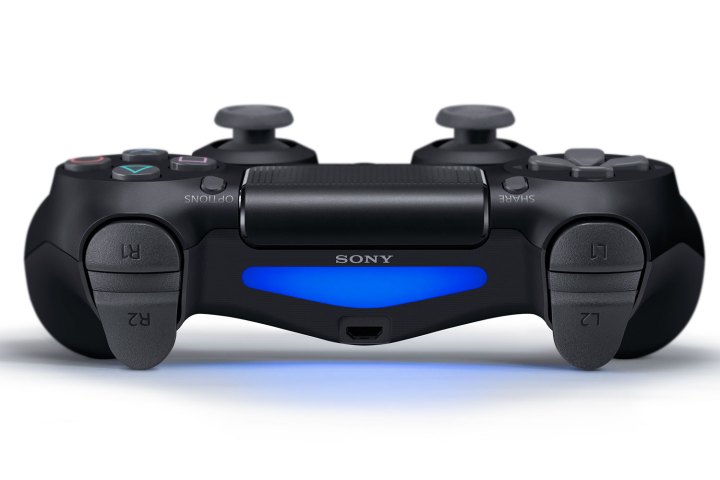
You’ll be able to tell the controller is working because the LED light bar on the top of the controller will turn blue (or another color, if it isn’t the first controller connected — red for player 2, green for player 3, and pink for player 4). That cable will also recharge your controller, with the light turning yellow when the controller is charging but not turned on.
Troubleshooting: Re-pairing your controller
When you’re having trouble with a controller not working wirelessly with your PS4, the usual issue with pairing is that the controller’s battery is undercharged. If it sounds like the “unplug it and then plug it back in” solution to the problem, it is.
Step 1: Make sure the controller is charging when you plug it in — when it’s not in use, you’ll see the light bar on the top turn yellow. If it’s not charging, you might have another issue, like a damaged controller port or a bad cable.
Step 2: If your pairing issues aren’t related to power or your cable, you might need to reset your PlayStation controller, and reset your PlayStation 4 to pair it again. If you’ve got a controller that still works, you can do that in the PS4’s Settings menu. It’s on the home screen on the far-right side, represented by a Suitcase icon.
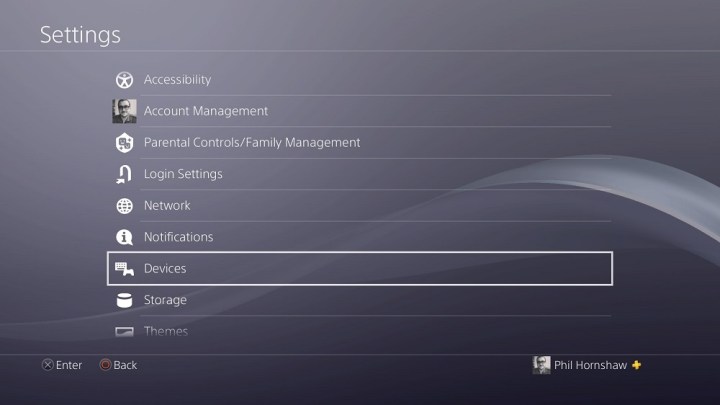
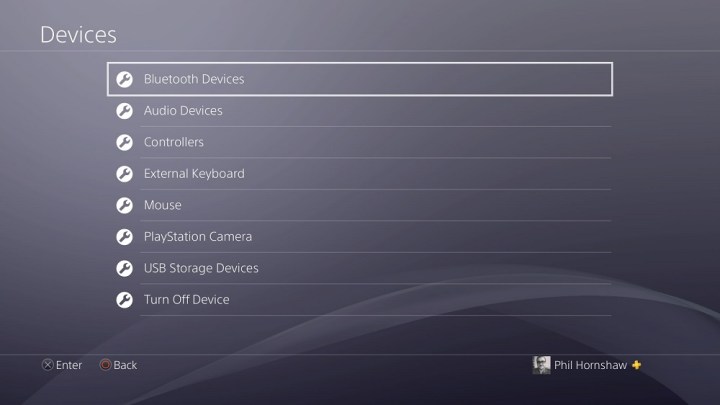
Step 3: Navigate down to the Devices menu, and then choose Bluetooth Devices. In the Bluetooth settings, you’ll see all your controllers there, as well as any other Bluetooth devices that are compatible with your PlayStation, such as PS4 headsets and the greatly-improved PDP PS4 Bluetooth Remote. Choose the one you’re trying to reset (it can be difficult to tell, and you might need to turn on all your controllers if you have more than one), select it, and hit the X button.
Now hit the Options button on your controller to bring up a contextual menu, and select Forget Device. Doing so will cause your controller to unpair with your PlayStation 4.
Once that’s done, you should be able to plug the controller in with your USB adapter to pair it to the console again, as mentioned toward the start of this guide.
How to hard reset your controller
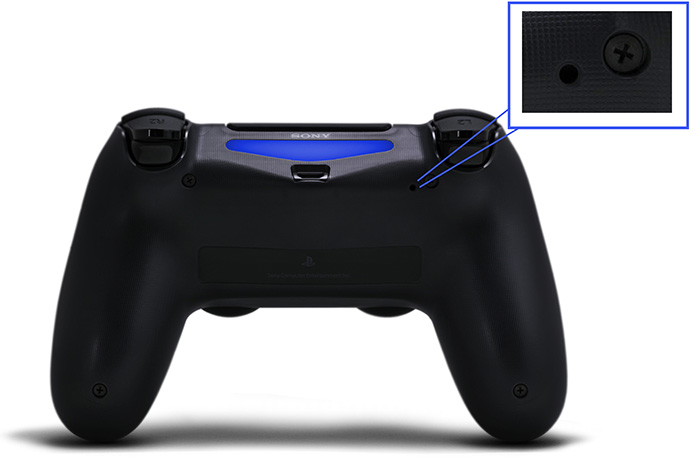
If re-pairing the controller doesn’t work, the issue might be with the controller itself and not the PS4. In that case, you’ll need to reset the controller. You’ll need an unfolded paper clip (or something similarly thin and sturdy) with which to push a hidden button on your PS4 controller to reset it.
Step 1: Turn off your PS4 and unplug both it and your internet router or modem so that your controller won’t receive any network signals when you reset it.
Step 2: When that’s done, flip the controller over and look for a small hole on the right side. Push the paperclip in the hole and push the button inside for three to five seconds. It’s best to hold it down for a count of 10 to be sure.
Alternative: How to go USB-only
It’s also possible to skip over the Bluetooth wireless connection and play with your DualShock 4 as a wired controller, with a USB-enabled connection. That’s obviously not ideal when you could potentially play wirelessly, but it’s a potential workaround when connectivity and signal issues persist. You can set a controller to only communicate with the PS4 via USB when it’s plugged in by changing the controller settings in the Devices menu, as noted above. Under Devices, navigate to Controllers, and then set any controllers to only communicate via USB when they’re plugged in. That way, signal issues or Bluetooth problems shouldn’t affect the controller, so long as you’ve got a wired connection.
Thinking about upgrading to the PS5? Take a look at our guide to see how the PS4 and PS5 compare.
Editors’ Recommendations