
The Steam Deck walks the fine line between handheld and desktop, meaning it can do just about anything a gaming PC can, including connecting to external controllers via Bluetooth and USB. Better still, Valve’s Steam Input software makes pairing and configuring your weapon of choice a breeze, meaning you won’t have to faff around.
The Steam Deck’s built-in controls are a boon if you love gaming on the go, but there are plenty of reasons to pair the portable powerhouse with the best PC controller. You’re going to have a hard time using an external gamepad with the device if you’re out and about – unless you’re Goro from Mortal Kombat – but it could enhance your experience tenfold if you prefer to hang out on the couch or at your gaming desk.
Unless you own the now-discontinued Steam Controller, there’s nothing quite like the Steam Deck’s trackpads making PC strategy games playable. That said, connecting an Xbox, PlayStation, Razer, Scuff, or just about any compatible controller gives the handheld more versatility than console alternatives.
Here’s how to use an external controller on Steam Deck:
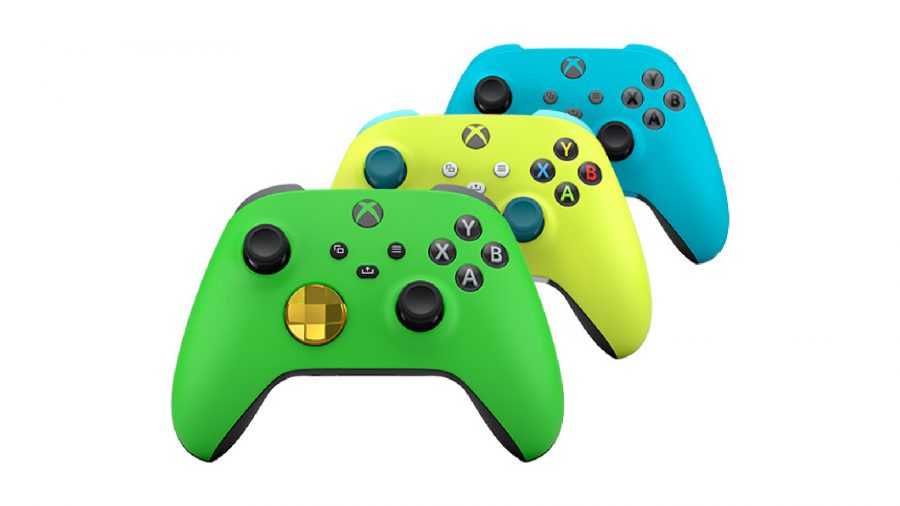
How to use an Xbox controller on Steam Deck
Bluetooth devices can be fiddly, but SteamOS makes the whole affair feel like a doddle. If you’ve ever hooked up an Xbox controller wirelessly to Windows 11 without an Xbox Wireless Adapter, then the following steps should feel somewhat familiar:
- On your Steam Deck, navigate to settings > Bluetooth.
- Turn Bluetooth on then press and hold the controller’s pairing button.
- Wait for your controller to appear on the screen then select it with the A button to pair.
It’s worth noting that early versions of the original Xbox One controller aren’t compatible via Bluetooth, so keep that in mind before picking one up to use with the Steam Deck. You also shouldn’t have to spend much time configuring the pad’s layout, as Valve’s approach is near identical.
How to use a PlayStation controller on Steam Deck
If you’re a PlayStation fan, chances are you already own a Dualshock 4 or a Dualsense, and Sony’s pads are also compatible with the Steam Deck. Here’s how to link up your PS4 or PS5 controller to Valve’s handheld:
- Head to settings > Bluetooth and switch it on
- Hold down the PlayStation logo and share button until LED lights flash
- Highlight “Wireless controller” on Steam Deck screen and press A to pair
Just like with Xbox’s pad, you shouldn’t have to spend much time configuring your PlayStation controller’s layout. That said, you will get a warning in most games about your buttons in games, as they won’t match any built-in UI elements. In other words, you’ll want to disregard Sony’s iconic symbols and take a more positional approach to presses.
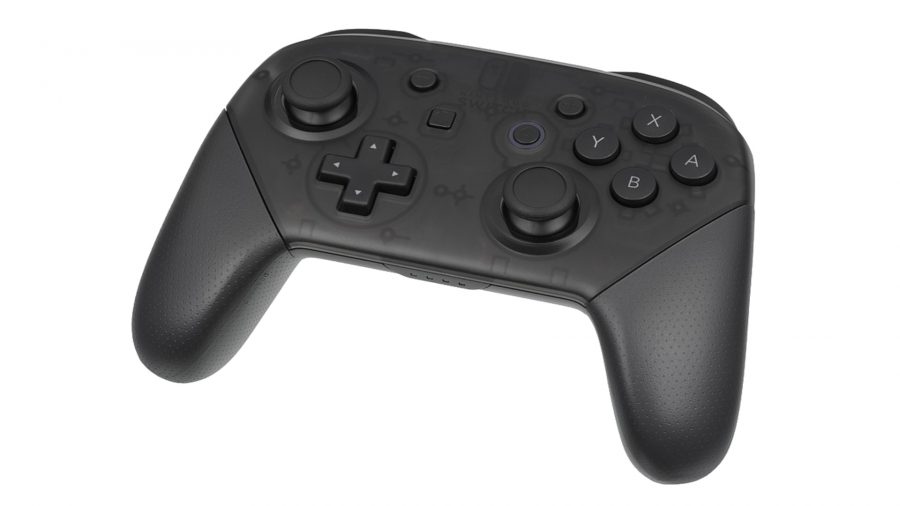
How to use a Nintendo Switch Pro controller on Steam Deck
The Nintendo Switch Pro controller helps the best platform games shine, so it’s easy to see why you’d want to pair one with the Steam Deck. While older Nintendo peripherals don’t play as nice with gaming PCs, you can hook the Pro controller up to SteamOS using three easy steps:
- Hop into settings > Bluetooth and make sure it’s switched on.
- Hold down the pairing button at the top of the Pro controller.
- Highlight “Pro controller” on screen and press A.
Your Nintendo Switch Pro controller should now be linked to your Steam Deck. Just like with Xbox and PlayStation’s palm companions, you won’t need to configure any buttons. As most games use Microsoft’s pad layout, you’ll have to disregard the controller’s face button labels, but the experience otherwise should be seamless.
It’s also possible to arm your Steam Deck with Nintendo Switch JoyCons, but they won’t natively link up as a pair. For that, you’ll have to use a specific Arch Linux tool to sync up the JoyCons and use them as a singular controller.
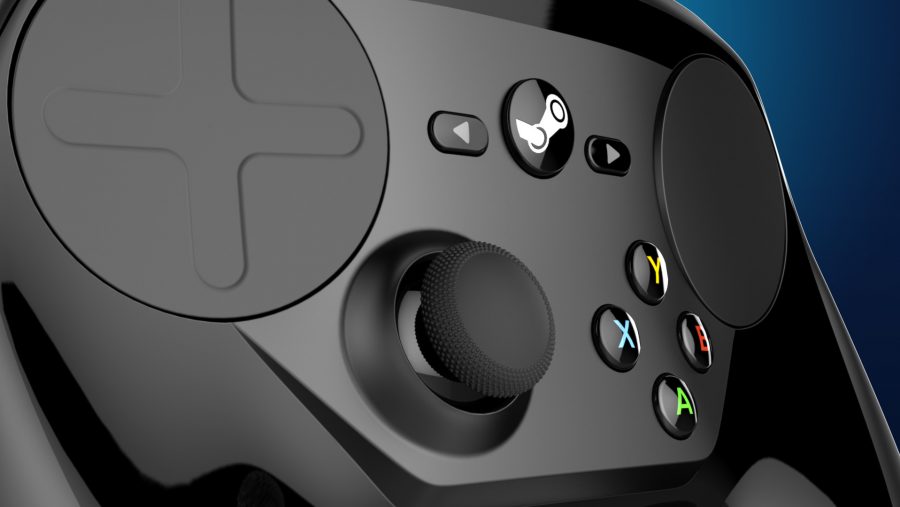
How to use a Steam controller on the Steam Deck
The Steam Deck Controller might be considered a hardware flop, but its trackpads make it a perfect gaming mouse alternative – especially if you want to kick back on the sofa and play some Age of Empires 4. Before you get to pairing the two Valve devices, you’ll want to make sure the gamepad’s firmware is up to date, as this will ensure it can connect via Bluetooth. Once that’s out of the way, you should be able to introduce the handheld to its ancestor:
- Jump to settings > Bluetooth and ensure it’s turned on.
- Hold down the Y and centre logo button on the Steam Controller.
- Select the controller on the screen and hit A to pair.
The Steam Controller uses a near-identical button and trackpad layout to the Deck, meaning it’ll provide your thumbs with a similar experience to the handheld. Just note that it only packs one joystick, which could make its layout feel a little quirky.
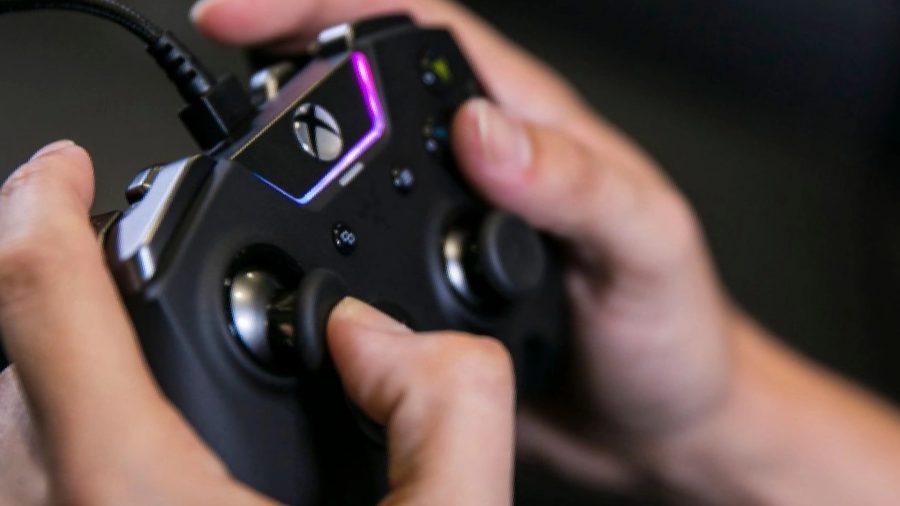
How to use wired USB controllers on Steam Deck
The Steam Deck spends a lot of time cord-free, but you can still tether it to a wired USB controller. If you’re planning on plugging straight into the handheld, you’ll either need to use a USB C cable or an adapter that supports USB A.
The official Steam Deck dock hasn’t arrived yet, but it should make using wired gamepads a little easier. Not only will it provide an expanded number of USB ports, but connecting to the dock rather than the portable should feel less awkward and a little more secure.
What controllers are compatible with Steam Deck?
SteamOS supports a wide range of controllers, and you can configure most options to maximise compatibility. Here’s a list of gamepads that are officially compatible with Steam Deck:
- Steam Controller
- Playstation Dualshock 4
- PlayStation 5 Dualsense
- Xbox 360 controller
- Xbox One controller
- Xbox Series X/S controller
- Any generic XInput controller
- Any DirectInput gamepad
Valve says that other input devices may work, even if they aren’t officially supported by SteamOS. Therefore, it’s probably worth experimenting, as you might be able to use your favourite pad with the portable powerhouse.
Palm companions: Check out the best PC controllers
Can you connect multiple controllers to Steam Deck?
Just like a PC, you can connect multiple controllers to the Steam Deck for multiplayer gameplay. The number of simultaneous Bluetooth connections you can make may vary, but you should be able to comfortably connect four or mode pads to the Deck wirelessly. You can also hook up wired options, but you’ll need to either use a hub or a docking station, as the device only has one USB C port.


